
Install LumaTV on your screen.
Pick your device, follow the steps, then sign in with the access details sent by our team.
Your LumaTV app
- App name
- LumaTV
- Requirements
- Any Android TV or Android device with Downloader installed
- Downloader code
- 5251669
- Direct download link
- LumaTV.net/app
Android APK · Open the link on your Android device or in Downloader.
Choose your device
Open the guide for the screen you want to set up.
Fire TV / Fire TV StickFor compatible Fire OS models
Some newer Fire TV models use a different operating system. Send us your model before following the APK installation steps.
Open Downloader
Open Downloader by AFTVnews. If it isn’t installed, follow the Downloader setup guide above first.
Allow installation when prompted
If your device asks, open Settings → My Fire TV → Developer Options → Install unknown apps, then enable Downloader. Menu names vary by model; older versions may show Apps from Unknown Sources.
Enter the LumaTV Downloader code
In Downloader’s URL field, enter 5251669 or LumaTV.net/app, then select Go to download LumaTV.
Install and open the app
Once the APK has downloaded, choose Install, then Open. Confirm the app name against the details above before installing.
Sign in to LumaTV
Use the access details sent by the LumaTV team for your trial or subscription.
Android TV / Google TVFor any Android TV or Android streaming device
Use these steps on your Android TV, Google TV or Android streaming box.
Open Downloader
Open Downloader by AFTVnews on your device. If you need to install it, follow the Downloader setup guide above first.
Download the LumaTV app
Enter 5251669 or LumaTV.net/app in Downloader’s URL field, then select Go.
Allow Downloader and install
If Android asks for permission to install apps from this source, allow it for Downloader. Return to the installer, select Install and open the app. Settings labels vary by device.
Sign in with your access details
Enter the trial or subscription details sent by our team.
Android phone / tabletFor Android phones and tablets
Install Downloader by AFTVnews first, then use the same LumaTV code on your phone or tablet.
Open Downloader
Open Downloader by AFTVnews on your phone or tablet. If it isn’t installed yet, use the Downloader setup guide above.
Download LumaTV
Enter 5251669 or LumaTV.net/app in Downloader’s URL field and select Go. Wait for the APK download to finish.
Install, open and sign in
If Android asks, allow Downloader to install this app. Select Install, open LumaTV and sign in with the trial or subscription access details supplied by our team.
Install LumaTV, in pictures.
These illustrated TV screens show the installation sequence. Menu names and screen layouts may vary on your device. On a phone or tablet, follow the same download and installation steps.
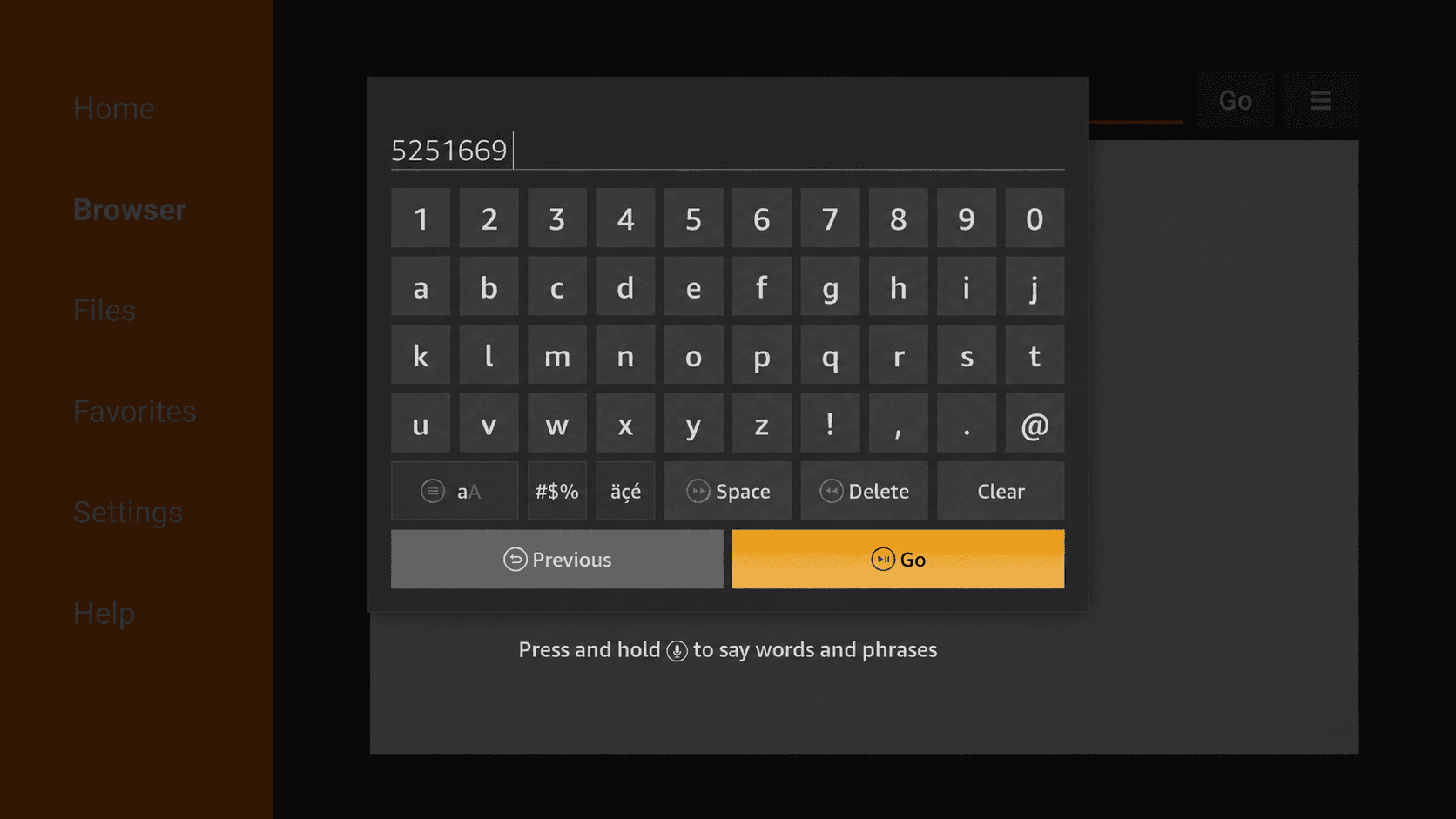
Enter the LumaTV code
In Downloader’s URL field, enter 5251669, then select Go. You can also use LumaTV.net/app.
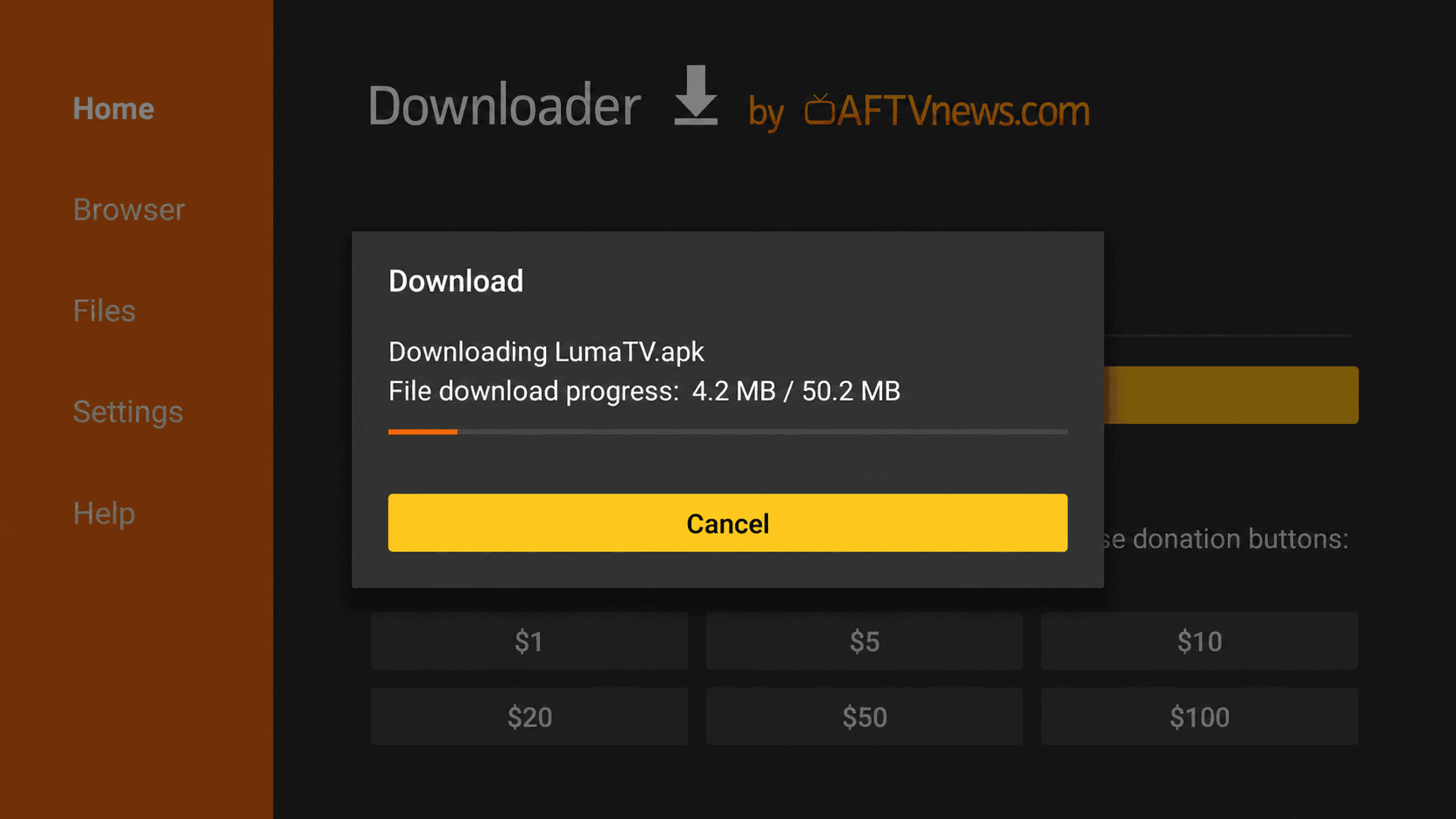
View full-size image Wait for the download
Keep Downloader open while the LumaTV APK downloads. The installer will appear when it is ready.
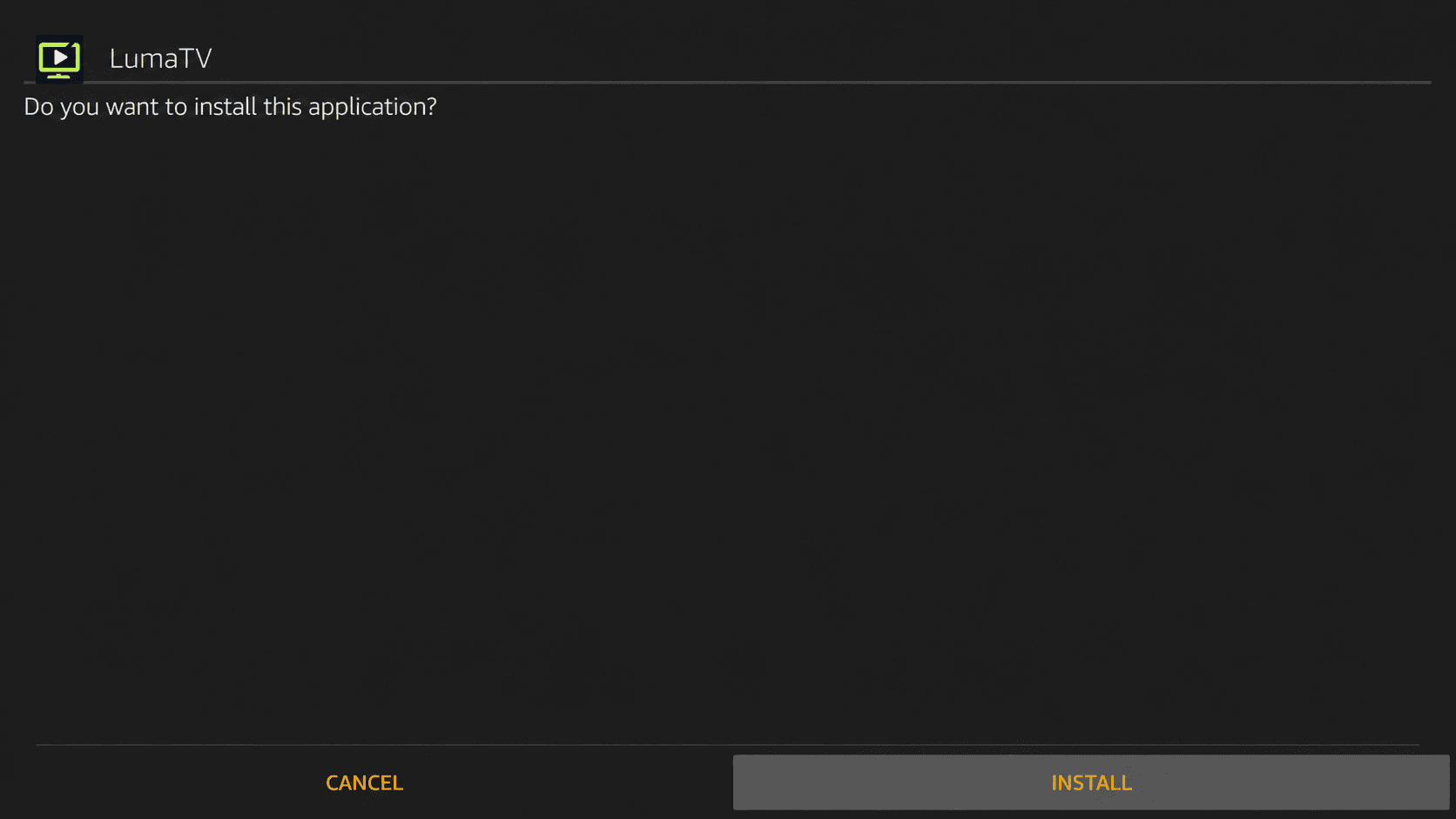
View full-size image Choose Install
Check that the app is named LumaTV, then select Install. If asked, allow Downloader to install apps and return to this screen.
View full-size image Open LumaTV
Once installation is complete, select Open. Sign in using the access details sent by the LumaTV team.
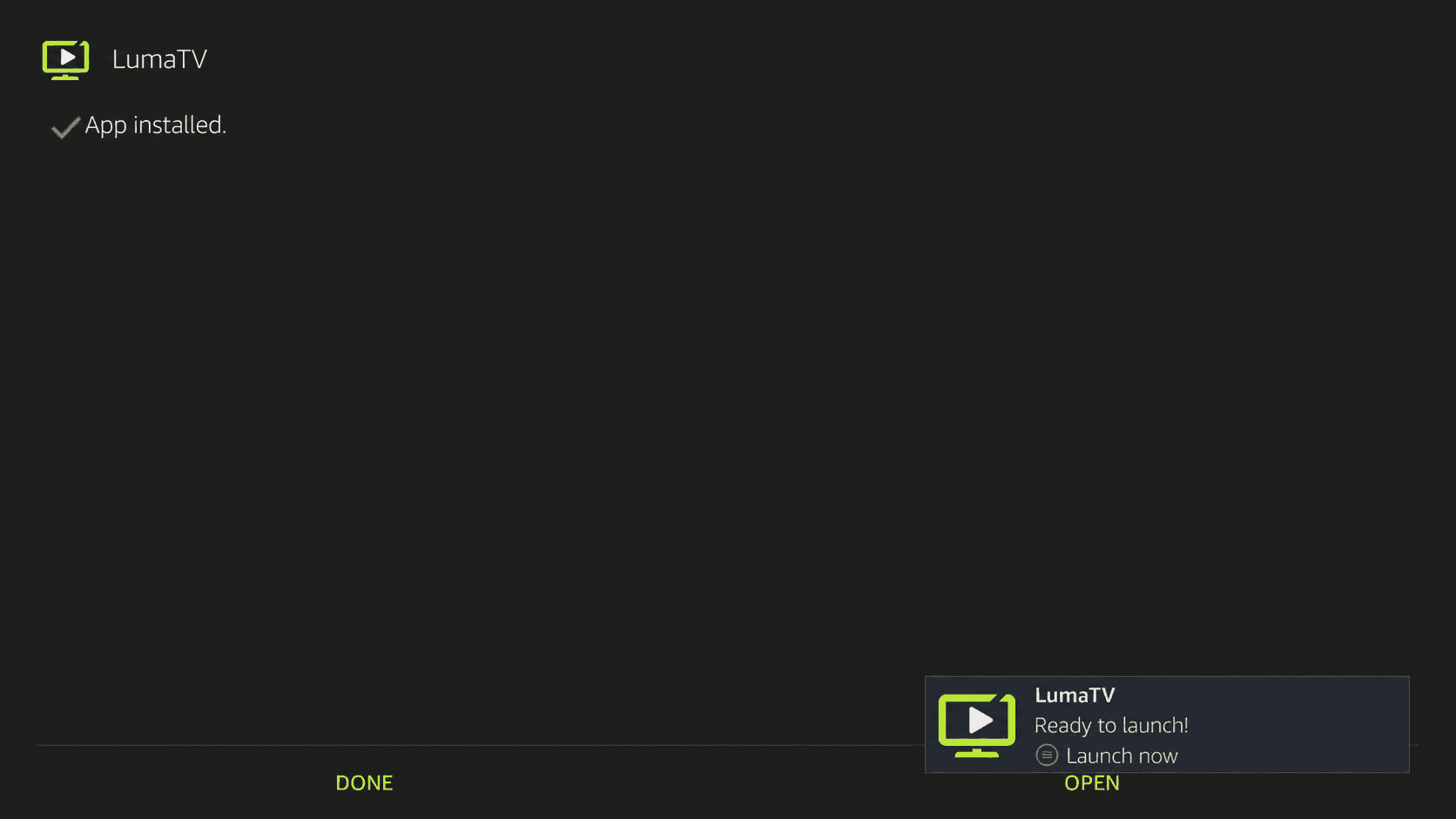
View full-size image
A different screen? Stuck on a step?
Send us your device model and a photo of the screen you’re on. We’ll help you find the right setup path.
Get setup help on WhatsApp+44 7882 745442