
Install Downloader first.
Downloader by AFTVnews is the app you’ll use to download LumaTV. Set it up once, then return to the LumaTV installation guide.

Downloader by AFTVnews
Open your device’s app store
On Android TV, Google TV, a phone or tablet, open Google Play. On a compatible Fire TV, open Find → Search from the home screen.
Find Downloader by AFTVnews
Search for Downloader. Choose the app by AFTVnews.com with the orange icon shown here.
Install it, then select Open
Choose Install in Google Play, or Get / Download in the Amazon Appstore. Wait for installation to finish, open Downloader and complete its welcome screens.
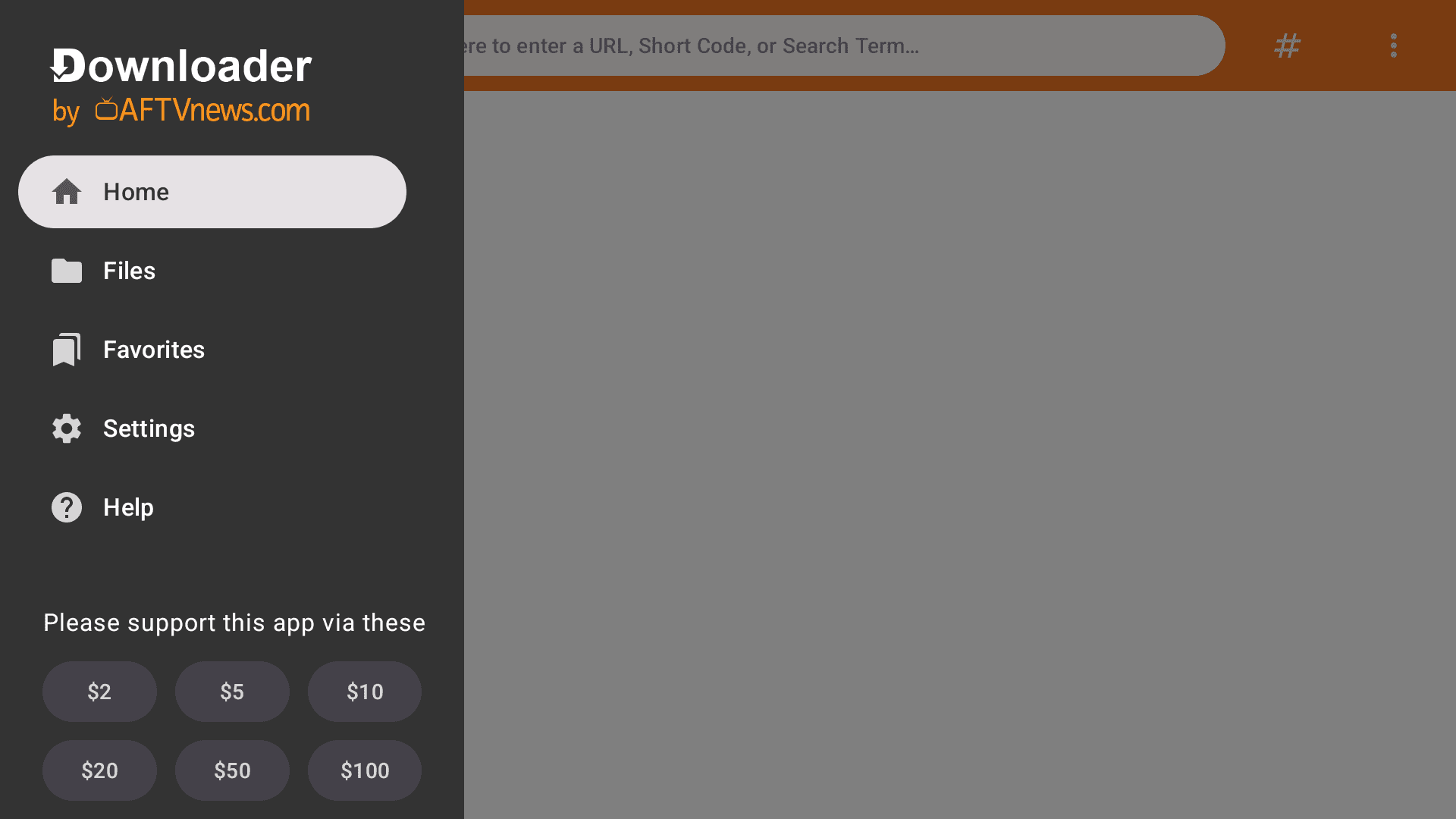
Downloader’s TV home screen. The layout may differ by device or version. Continue with LumaTV
Downloader is ready. Return to our guide and enter 5251669 in Downloader’s URL or short-code field to download LumaTV.
If the app is unavailable for your device, contact us from the LumaTV guide. When installing LumaTV later, allow app installation for Downloader only if your device requests it.
Continue installing LumaTVApp icon and screenshot: AFTVnews. Official Downloader page